Screen recording has become an important tool for students, professionals, content creators, gamers, and everyday computer users. Whether you want to record a tutorial, capture an online meeting, create a gaming video, or save an important moment from your screen, having a reliable screen recorder can make the process much easier. iTop Screen Recorder is a popular screen recording solution designed to help users capture their computer screen with simple and convenient controls.
With its user-friendly interface and multiple recording options, iTop Screen Recorder can be useful for both beginners and experienced users. It provides tools for recording different areas of the screen while also offering additional features for creating more useful and engaging recordings.
What Is iTop Screen Recorder?
iTop Screen Recorder is a desktop screen recording application that allows users to capture activities displayed on their computer screens. Instead of using complicated recording software, users can select the recording area, start recording, and save the resulting video.
The software can be used for a variety of purposes, including creating educational videos, recording presentations, capturing software demonstrations, making gaming content, and preparing video tutorials.
Its straightforward design makes it easier for users to find the features they need without spending a lot of time learning complicated controls.
Key Features of iTop Screen Recorder
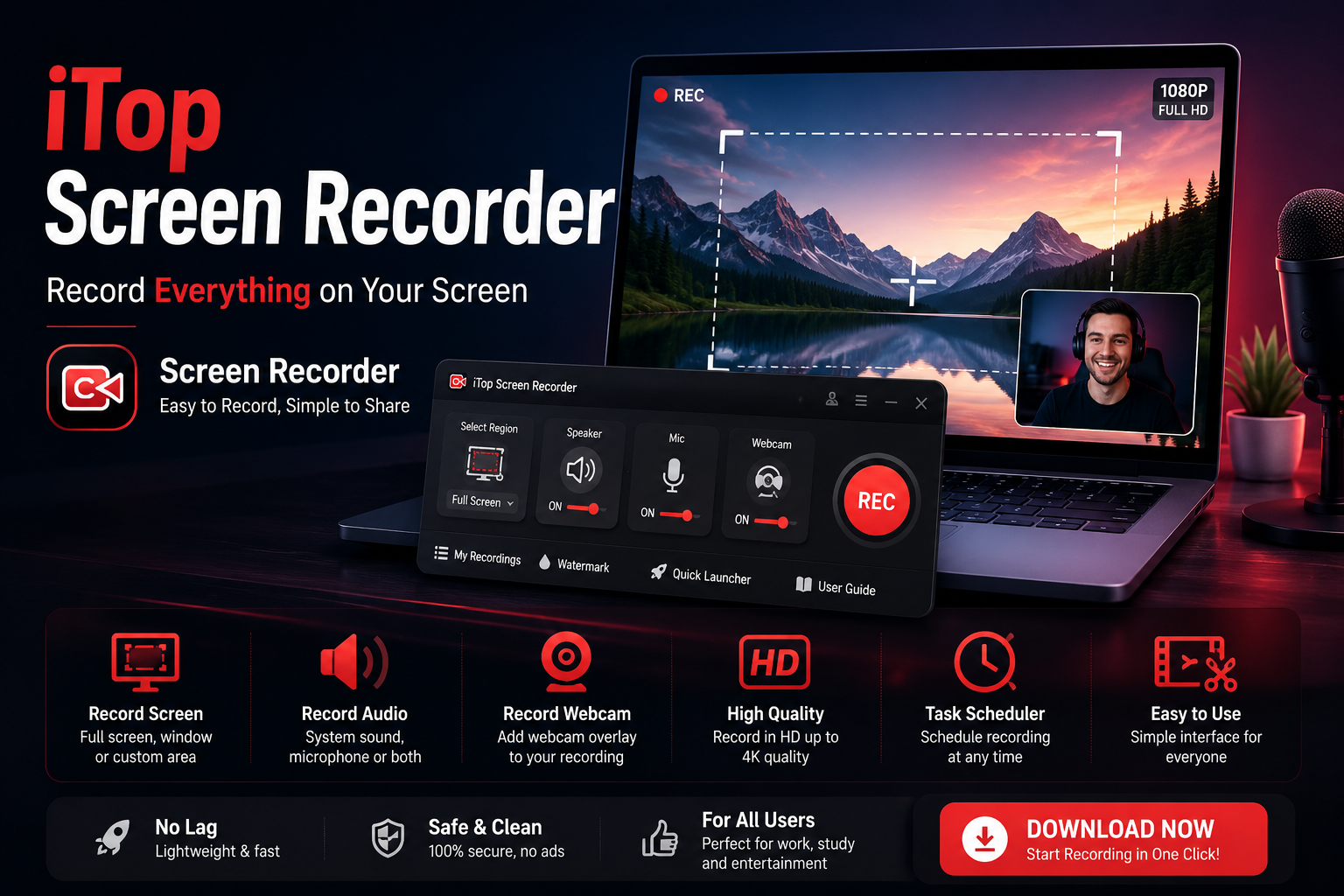
One of the main advantages of iTop Screen Recorder is its flexible screen capture functionality. Users can generally choose whether they want to record the entire screen, a specific area, or an application window, depending on their requirements.
Screen Recording
The primary function is, of course, screen recording. You can capture activities taking place on your desktop and create a video that can later be watched, edited, or shared.
This is especially useful when explaining how to use software or demonstrating a particular process on a computer.
Webcam Recording
For tutorials, presentations, and online content, showing the user’s face can make a recording more personal. iTop Screen Recorder includes webcam-related recording functionality, allowing users to combine screen activity with camera footage where supported.
Audio Recording
Audio is another important part of screen recording. Depending on the selected settings, users can record system sounds and microphone input. This can be helpful when creating tutorials, commentary videos, presentations, or gaming recordings.
Gaming Recording
Gamers can use screen recording software to capture gameplay for sharing with friends or publishing on video platforms. Recording gameplay can also be useful for creating guides, walkthroughs, and highlights.
How to Use iTop Screen Recorder
Using a screen recorder does not have to be complicated. After installing and opening iTop Screen Recorder, select the recording mode that matches your needs.
First, choose the area you want to capture. You can select the full screen or a specific section if you only need to record part of the display. Next, configure audio and other available settings.
Once everything is ready, click the record button to begin. Complete the activity you want to capture, and stop the recording when finished. The recorded video can then be saved and managed according to your requirements.
Before recording a long video, it is a good idea to make a short test recording. This allows you to check the microphone, system audio, recording area, and video quality.
Benefits of Using a Screen Recorder
A screen recorder can save time when explaining complicated processes. Instead of writing a long set of instructions, you can demonstrate the process visually.
Students can use recordings to create educational material, while teachers can record lessons and demonstrations. Businesses can also use screen recordings for software training, product demonstrations, and internal tutorials.
Content creators can use screen recording tools to produce tutorials, reviews, presentations, and gaming videos. The ability to capture both visual and audio information makes video an effective way to communicate information.
Tips for Better Screen Recordings
For better results, prepare your desktop before starting a recording. Close unnecessary applications and notifications so that private information or distracting pop-ups do not appear in the video.
Make sure your microphone is working correctly if you plan to add voice commentary. You should also choose a suitable recording resolution and frame rate according to your computer’s capabilities and the purpose of the video.
For gaming recordings, closing unnecessary background applications can help free system resources. For tutorials, keeping your desktop organized can make the final video easier for viewers to follow.
Final Thoughts
iTop Screen Recorder provides a convenient way to capture computer screen activity for tutorials, presentations, gaming, education, and other projects. Its screen recording, audio, and webcam-related capabilities can make it a useful tool for different types of users.
Whether you are creating your first tutorial or regularly producing video content, choosing a screen recorder with simple controls and useful recording options can make the process more efficient. With proper preparation and the right settings, you can create clear and useful screen recordings for personal, educational, or professional purposes.
About the Author