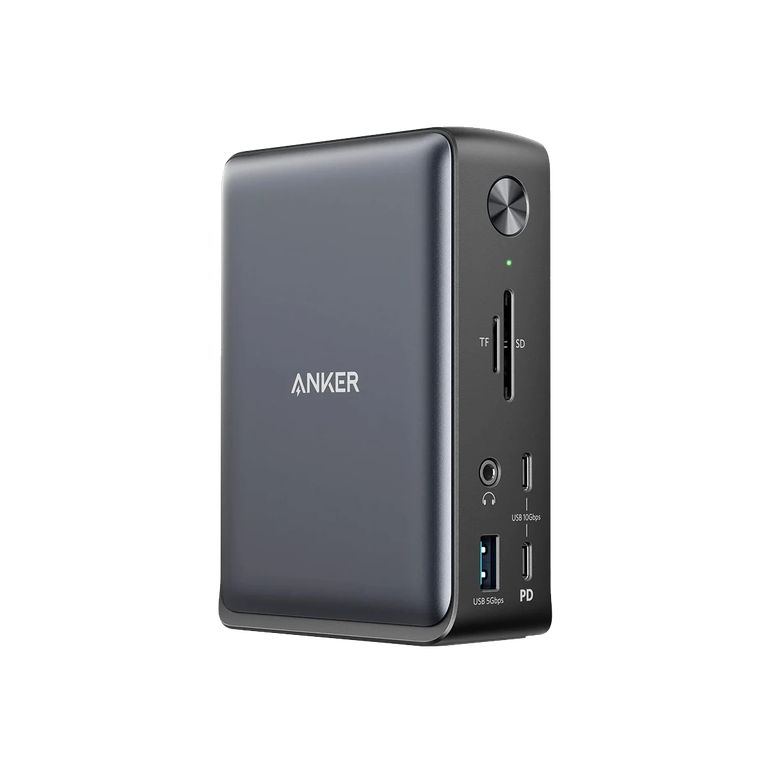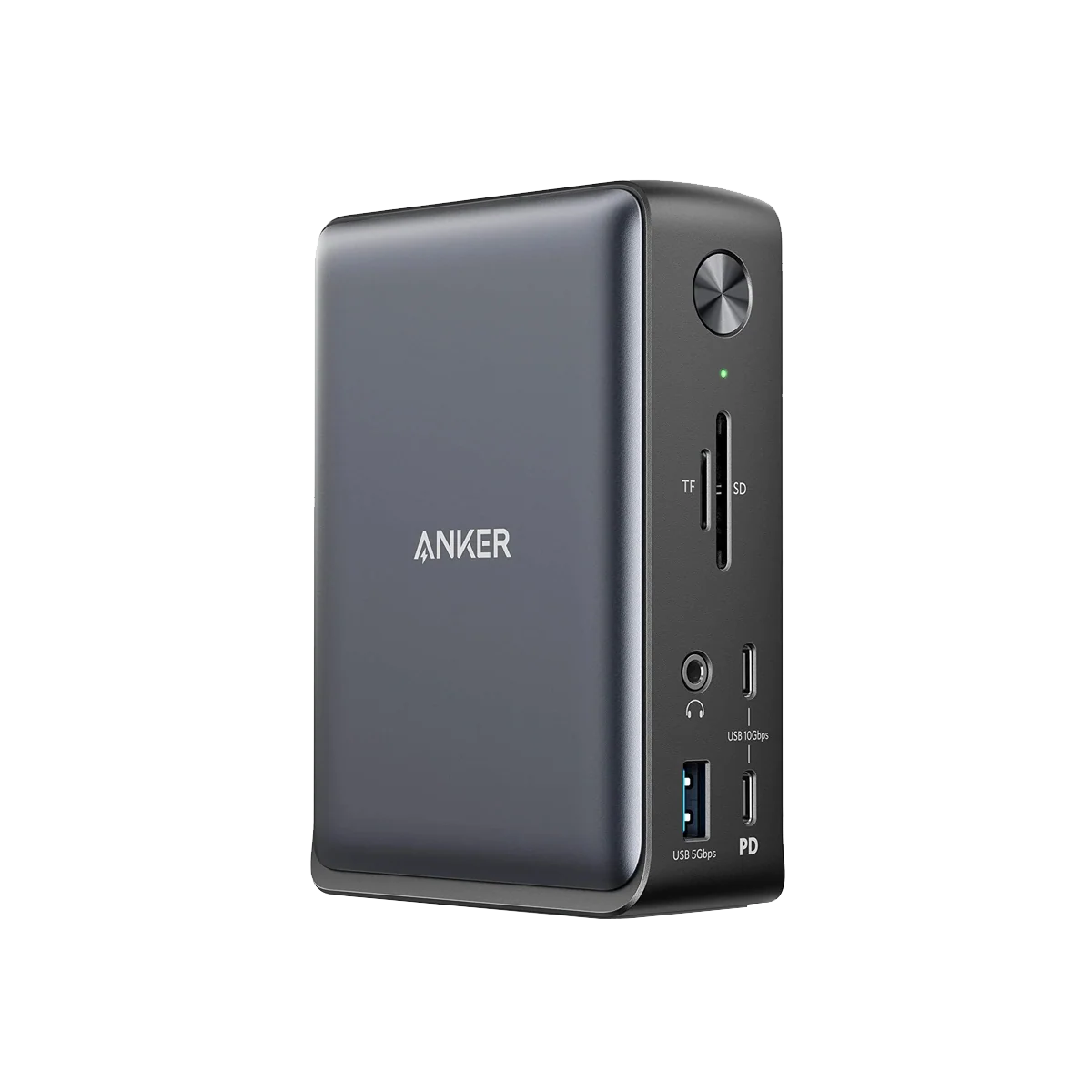
Modern laptops are becoming thinner, lighter, and more portable. However, many newer devices have fewer physical ports than traditional computers. This can create problems for people who need to connect external monitors, keyboards, storage drives, and other accessories. A USB C docking station offers a practical way to solve these connectivity challenges.
Along with a docking station, choosing the right USB C cable is equally important. A suitable cable can support reliable charging, fast data transfers, and smooth connections between compatible devices. Understanding how these two accessories work together can help users create a more organized and efficient workspace.
Whether you work from home, study online, travel frequently, or manage a professional office, the right connectivity setup can make everyday tasks easier.
What Is a USB C Docking Station?
A USB C docking station is a device that expands the connectivity options of a compatible computer. It connects through a USB-C port and provides additional connections for different peripherals.
Depending on the model, a docking station may include HDMI, DisplayPort, USB-A, USB-C, Ethernet, audio, and memory card ports. Some models also support laptop charging through USB-C Power Delivery.
For example, a laptop with only two USB-C ports might struggle to connect multiple accessories simultaneously. A docking station can provide the additional ports needed to connect a monitor, mouse, keyboard, and external storage device.
This makes docking stations useful for professionals, students, designers, and anyone who regularly works with multiple devices. Instead of reconnecting several accessories whenever you sit at your desk, you can connect them through one central hub.
Why Is a USB C Docking Station Useful?
One of the biggest advantages of a docking station is convenience. It reduces cable clutter and allows users to connect several compatible devices through a single connection to their computer.
For office workers, it can simplify the process of switching between mobile and desktop work. A laptop can remain portable while supporting a more complete workstation at home or in the office.
Docking stations can also improve productivity. Users can connect external displays, access wired internet, transfer files, and use full-sized peripherals without constantly switching cables.
However, capabilities vary between models. Some docking stations support multiple high-resolution displays, while others offer basic connectivity. Checking your laptop’s supported display outputs, USB-C capabilities, and power requirements is important before making a purchase.
Understanding the Importance of a USB C Cable
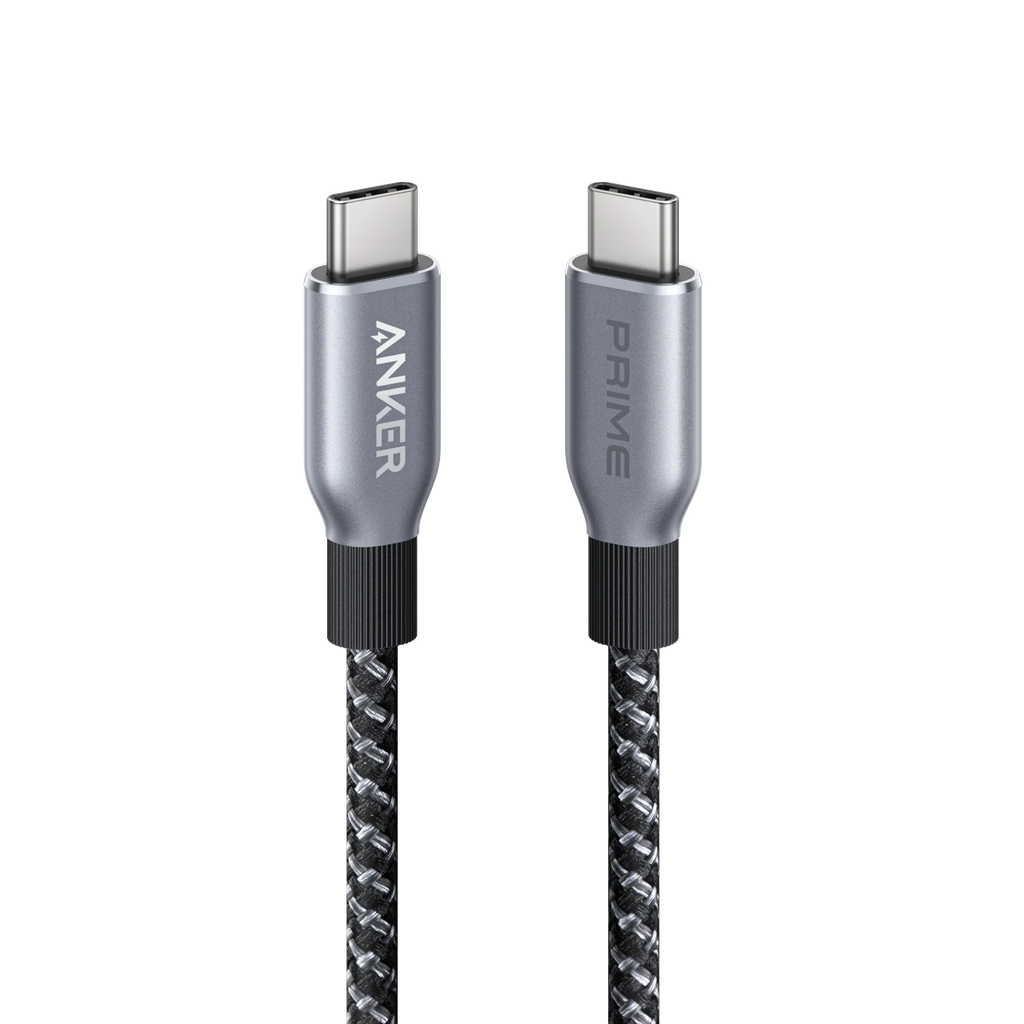
A USB C cable is designed to connect devices that use the USB Type-C connector. Its small, reversible design allows users to insert the connector in either orientation.
However, not every USB-C cable provides the same performance. Some cables support basic charging and slower data transfers, while others offer higher data speeds, greater power delivery, or video output.
This difference matters when connecting a laptop to a docking station. A cable that supports only basic charging may not provide the bandwidth required for every function of an advanced dock.
For this reason, users should review the cable’s specifications before choosing one. Important details include supported data rates, charging power, video capabilities, and compatibility with connected devices.
How a USB C Docking Station and USB C Cable Work Together
A docking station and cable work together to create a reliable connection between a computer and its accessories. The cable carries supported power and data signals, while the docking station distributes connectivity to the available ports.
Consider a professional who uses a laptop, two external monitors, an external SSD, and a wired keyboard. A compatible docking station can bring these connections together in one place.
The connection between the laptop and dock must support the features the user needs. For example, display output depends on the computer’s video capabilities, the dock’s specifications, and the connection standard supported by the cable.
A high-quality cable cannot add features that the laptop or docking station does not support. Choosing compatible equipment is therefore more important than simply selecting the most expensive accessories.
Key Features to Consider Before Buying
Choosing the right accessories requires more than comparing prices. Understanding a few essential features can help you avoid compatibility problems.
1. Port Selection
Check which connections you need for your daily tasks. HDMI or DisplayPort may be necessary for external monitors, while USB-A ports can support older accessories. Ethernet can provide a wired network connection when available.
2. Data Transfer Speeds
Different USB standards support different data rates. If you frequently transfer large files, choose a docking station and cable that support suitable speeds for your devices.
Remember that actual performance depends on the complete connection, including the computer, dock, cable, and connected peripheral.
3. Charging Support
Some docking stations can charge compatible laptops through USB Power Delivery. Check the dock’s maximum power output and your laptop’s charging requirements.
The USB-C cable must also support the required power level. Higher-power charging may require a cable specifically rated for that purpose.
4. Display Compatibility
If you use external monitors, check the supported resolution, refresh rate, number of displays, and video output options. Not every USB-C port supports video, and not every docking station supports the same display configuration.
5. Build Quality
Durable connectors, reliable construction, and appropriate cable length can make everyday use easier. A well-built accessory is particularly useful for people who frequently travel or connect and disconnect their equipment.
Common Mistakes to Avoid
One common mistake is assuming that every USB-C port supports every feature. Although the connector looks the same, different ports can have different data, charging, and video capabilities.
Another mistake is purchasing a USB-C cable based only on its appearance. Two similar-looking cables may offer very different performance.
Users should also avoid exceeding the supported power requirements of their equipment or assuming that every docking station can operate all connected devices simultaneously. Power limits and bandwidth restrictions can affect performance.
Before purchasing accessories, review the manufacturer’s compatibility information. This simple step can help prevent unexpected connection issues and unnecessary expenses.
Tips for Creating an Efficient Workspace
A well-organized workspace starts with selecting accessories that match your daily routine. Position your docking station where its ports remain accessible, and use suitable cable lengths to keep your desk tidy.
Labeling frequently used connections can make troubleshooting easier. You can also reduce unnecessary disconnections by leaving your monitor, keyboard, mouse, and other regular peripherals connected to the dock.
For users who travel often, a compact docking station and a compatible USB-C cable can simplify working from different locations. At home, a more feature-rich dock may be useful for connecting several monitors and additional accessories.
Keep device firmware and operating systems updated when manufacturers provide relevant updates. If a connection stops working, check the cable, port compatibility, power supply, and device settings before replacing your equipment.
1. Can a USB C docking station work with every laptop?
No. Compatibility depends on the laptop’s USB-C port, supported connection standards, operating system, and the dock’s requirements. Some features may not work on every computer.
2. Does every USB C cable support video output?
No. Video support depends on the cable’s capabilities and the connected devices. Check whether the cable supports the required video standard before purchasing it.
3. Can a docking station charge a laptop?
Yes, many docking stations support laptop charging through USB Power Delivery. However, the dock, cable, and laptop must support compatible power specifications.
4. What cable should I choose for a docking station?
Choose a cable that supports the required data speed, charging power, and video capabilities. Follow the docking station manufacturer’s recommendations for the most reliable results.
5. Is a docking station useful for working from home?
Yes. It can connect a compatible laptop to external monitors, keyboards, network connections, and other peripherals, helping create a convenient home office.
Conclusion
A reliable connectivity setup can make computers more practical for work, study, and everyday activities. A USB C docking station expands the available ports, reduces cable clutter, and helps users connect multiple compatible accessories through one central device.
Choosing the right USB C cable is just as important because cable specifications affect charging, data transfer, and supported video features. By checking compatibility, power requirements, port selection, and performance specifications, users can avoid common purchasing mistakes.
Ultimately, the best setup is one that meets your actual needs without paying for unnecessary features. With compatible equipment and careful planning, you can build a dependable workstation that supports productivity at home, in the office, or while traveling.
About the Author