
I click Uninstall, and the program disappears from my list. A few days later, I checked AppData, and its old files are still sitting there. The registry still has entries from it too. This happens more often than most people think because a normal uninstall skips the leftover files and cache that almost every program leaves behind.
That gap is why I take choosing a Windows uninstaller seriously. For this guide, I ran different popular uninstallers through the same tasks on my own PC and scored each one on how well it removes programs, how well it cleans up leftovers, and how much I’d actually use it day to day. By the end, you should know which one fits your PC.
Why You Need a Reliable Uninstaller for Windows
Windows’ built-in uninstall tool only does the basics. It pulls the main program files and stops there. It usually leaves the cache, temp data, and registry keys a program dropped during setup.
I’ve watched those leftovers pile up and slow a machine down over time. A dedicated uninstaller for Windows goes back and clears that stuff out. This matters even more with apps like Discord, Spotify, Chrome, and Steam, since they build big caches that a standard uninstall never touches.
Here’s how I tested the top tools on the market to see which ones actually deal with that.
5 Best Program Uninstallers in 2026: Hands-On Evaluation
1. IObit Uninstaller: Best All-in-One Utility
Below, we’ll outline some of IObit Uninstaller’s key features. First is its “Force Removal” feature, designed to tackle persistent or malicious software such as MPC-HC, IntelliJ IDEA, and Rockstar Games. Users can easily force uninstall over 40,000 types of stubborn software. During our testing, we found that it can also effectively remove bundled software without affecting the main program. Compared to Windows’ native uninstaller, IObit Uninstaller allows users to batch uninstall multiple applications at once and ensures a more thorough cleanup.
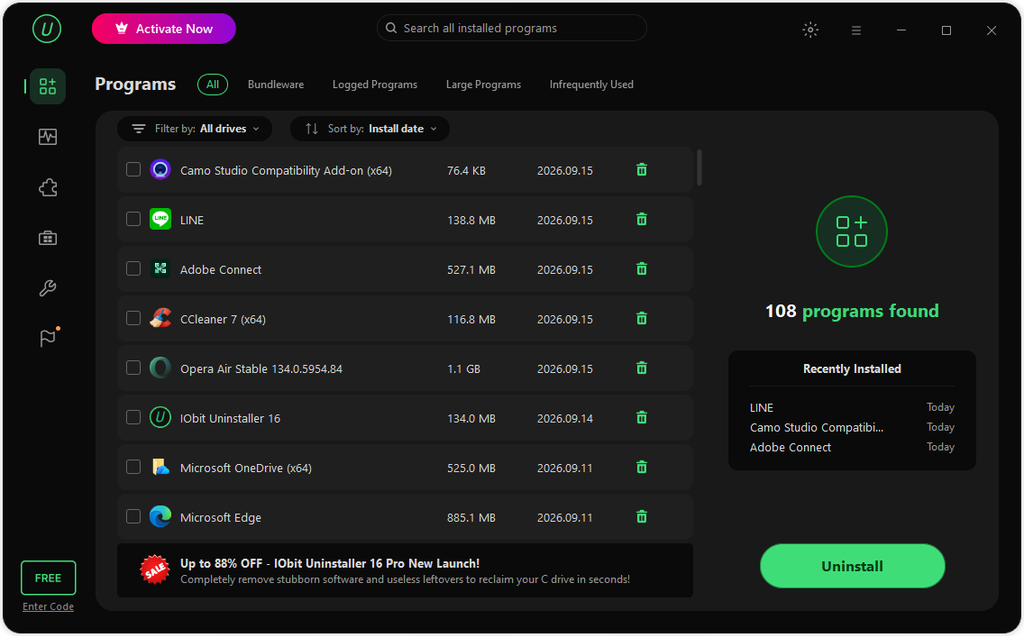
IObit Uninstaller also released its latest version 16 in September, introducing a new feature called “Software Relocation.”This new feature allows users to safely move installed programs to a different drive or partition without reinstalling, instantly freeing up valuable space on the system drive.
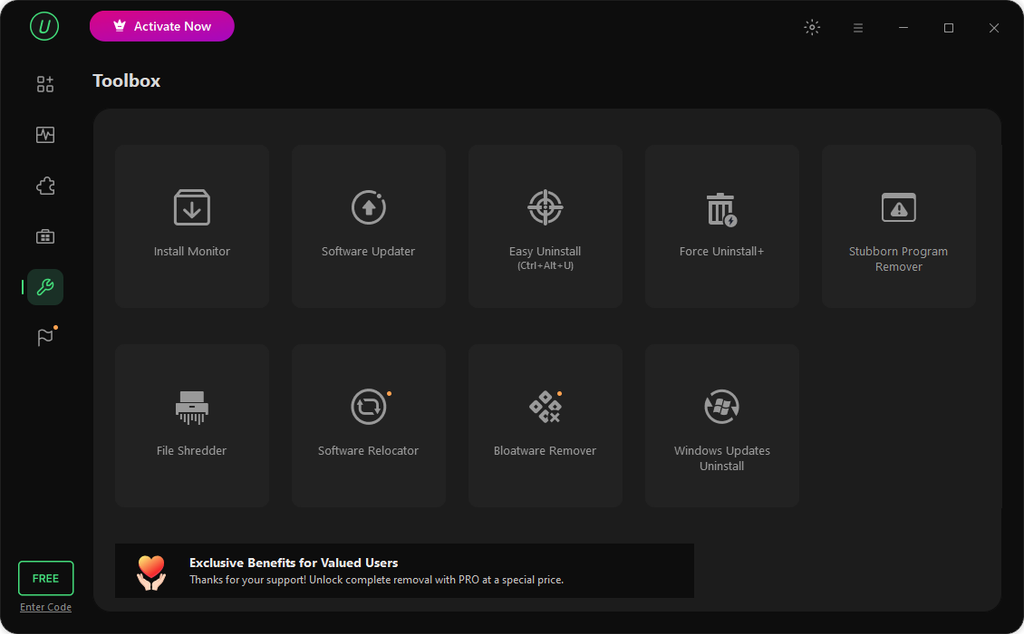
IObit Uninstaller also includes several highly practical features that I find particularly useful, such as Real-Time Install Monitor, which protects the system during application installations. It tracks all system modifications made by installers and generates detailed installation logs. The Bloatware Removal feature can eliminate pre-installed applications, system components, and bundled software that cannot be easily removed via standard Windows settings. Additionally, if you need to permanently destroy sensitive or confidential files, its built-in File Shredder ensures they are completely wiped and rendered unrecoverable by third-party recovery tools.
Of course, there are some drawbacks as well; for instance, the free version contains frequent banner ads and cross-promotional prompts. For casual users who only require basic uninstallation tasks, some of the advanced utilities may feel overly complex or unnecessary.
2. Revo Uninstaller: Best for Maximum Cleanup Thoroughness & Safety
The second uninstaller I’d like to recommend is Revo Uninstaller. Revo Uninstaller is known for its powerful scanning engine and system security features. First, it offers three scanning modes for detecting residual items: Safe, Moderate, and Advanced. Second, if you are worried about losing critical registry entries when uninstalling software, Revo Uninstaller is also a great choice. It automatically creates a Windows System Restore Point at the start of the uninstallation process. By doing so, you can easily revert changes if issues arise.
Revo Uninstaller’s Hunter Mode is also quite useful. Sometimes it’s difficult to locate the installation directory of an unknown background program, but by dragging the target icon onto its active window or icon, you can easily uninstall the program or manage its startup entry.
The drawback is that Revo Uninstaller’s advanced deep scan takes longer than some lightweight competitors. Its free version lacks real-time installation monitoring and batch uninstallation features (which are only available in the Pro version).
3. Geek Uninstaller: Best Lightweight & Portable Choice
Geek Uninstaller ranks third due to its lightweight footprint, high efficiency, and portable, single-executable design. I find Geek Uninstaller much like the built-in uninstaller in Windows, featuring the simplest and most user-friendly interface. Geek Uninstaller’s performance is impressive—it uninstalls programs quickly and can even detect nested residual files and registry leftovers.
Like the two uninstallers mentioned earlier, Geek Uninstaller also offers deep cleaning and forced removal functions. It can also uninstall Microsoft Store apps on Windows 8/8.1/10/11. As a single, small EXE file, Geek Uninstaller runs on any 32-bit or 64-bit Windows system.
However, Geek Uninstaller lacks advanced features such as batch uninstallation or real-time install monitoring. Its minimalist UI also provides relatively little visual feedback during the cleanup process, comparable to Windows’ built-in uninstaller.
4. HiBit Uninstaller: Best Completely Free, Feature-Packed Choice
HiBit Uninstaller is a free tool that can uninstall many programs (including Microsoft Store apps) more efficiently than the built-in Windows uninstaller. In addition, it integrates a variety of cleanup and system tools, such as file shredding, registry cleanup, startup manager, and browser extension manager.
This software can also uninstall stubborn programs and Microsoft Store apps. Its UI design is relatively simple and user-friendly. HiBit Uninstaller also offers additional features such as batch uninstallation of multiple programs, monitoring program installations, and securely deleting sensitive files.
However, for beginners, the interface may seem information-dense and be a bit overwhelming. Users should carefully review the settings before performing uninstallation operations using the built-in system tools.
5. Bulk Crap Uninstaller (BCUninstaller): Best for Mass Removal & Power Users
Bulk Crap Uninstaller is a completely free open-source batch uninstaller with advanced automation features. With this uninstaller, you can use its automation capabilities to uninstall large numbers of applications without any user intervention.
Even portable or unregistered applications can be detected and removed using Bulk Crap Uninstaller. Because its basic functions are simple and easy to use, it is suitable for most users. Since BCU was designed to run on any computer, its system requirements are quite lenient. As long as a computer can boot up, BCU will most likely run on it.
The downside is that the user interface is relatively complex and technically oriented, resulting in a steep learning curve. The initial system scan takes a long time because the program needs to thoroughly analyze system metadata.
Which Uninstaller Is Right for You?
When choosing a Windows uninstaller, IObit Uninstaller is the top recommendation—it not only offers powerful uninstallation and deep cleaning capabilities but also integrates practical features like Software Relocation, providing a one-stop solution for daily maintenance and storage management needs.
Of course, if you prioritize ultimate security and in-depth scanning, Revo Uninstaller is a solid alternative; if you’re looking for a lightweight and portable option, consider Geek Uninstaller; if you want a completely free yet feature-rich tool, try HiBit Uninstaller; and when you need to uninstall a large number of applications in bulk, Bulk Crap Uninstaller is the most efficient choice. However, when considering overall functionality and user experience, IObit Uninstaller remains the top choice for most users.
About the Author