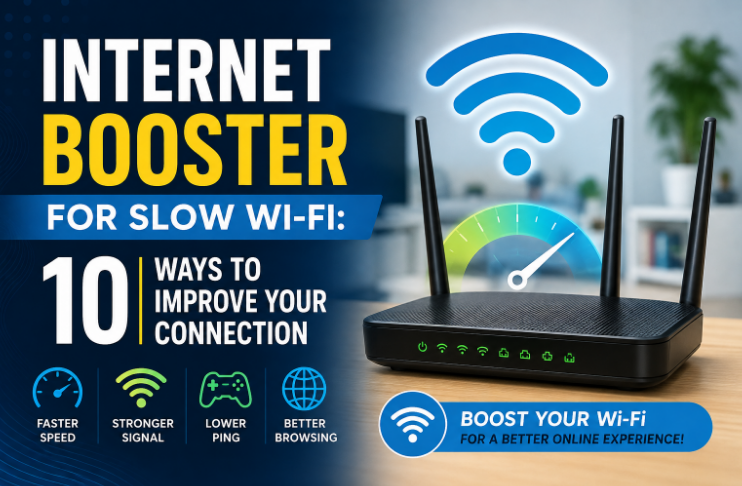
Slow Wi-Fi can turn simple online tasks into a frustrating experience. Web pages take longer to load, videos buffer, online games lag, and even video calls can become unreliable. Before blaming your internet provider, there are several things you can do to improve your connection.
From restarting your router to optimizing your device and reducing network congestion, these simple solutions can make a noticeable difference. Here are ten practical ways to get better performance from a slow Wi-Fi connection.
1. Restart Your Router
One of the easiest solutions is also one of the most effective. Turn off your router, wait around 30 seconds, and then turn it back on.
Restarting gives the router a fresh connection with your internet service provider and can clear temporary issues affecting network performance. If your Wi-Fi has suddenly become slower than usual, try this before changing more complicated settings.
2. Move Your Router to a Better Location
Where you place your router matters more than many people realize.
Choose a Central Location
Try placing the router in a central, elevated position rather than inside a cabinet or behind furniture. Walls, appliances, and other physical objects can weaken wireless signals.
Keep the router away from devices that may cause interference, such as microwaves and some Bluetooth equipment. A clearer environment can help your devices maintain a stronger connection.
3. Connect to the Right Wi-Fi Band
Modern routers commonly offer 2.4 GHz and 5 GHz networks. Each has different advantages.
The 2.4 GHz band generally provides better range, while 5 GHz can offer faster speeds when your device is relatively close to the router. If you’re near the router, switching to 5 GHz may provide a better experience.
Newer routers may also support 6 GHz, which can provide excellent performance with compatible devices.
4. Reduce the Number of Connected Devices
Too many devices using the same network can consume available bandwidth. Phones, smart TVs, computers, cameras, and other connected devices may all compete for resources.
Disconnect devices you aren’t currently using, especially those performing bandwidth-heavy activities such as large downloads or 4K streaming.
5. Update Your Router Firmware
Router manufacturers periodically release firmware updates to improve performance, security, and stability.
Check your router manufacturer’s administration page or mobile app to see whether an update is available. Keeping the firmware current can help resolve bugs and improve overall network reliability.
6. Update Your Computer’s Network Drivers
Sometimes slow Wi-Fi isn’t caused by the router at all. Outdated or problematic network drivers can affect your computer’s ability to communicate efficiently with the wireless network.
Check your computer manufacturer’s website or operating system settings for available driver updates. After updating, restart your computer and test the connection again.
You can also check your PC’s overall performance with a CPU stress test online if you’re experiencing broader performance problems rather than just network issues.
7. Close Background Apps and Downloads
Applications running in the background may quietly consume your bandwidth. Cloud synchronization, software updates, file downloads, and streaming services can all slow down your connection.
Open your device’s network or task-management settings and identify applications using significant network resources. Pause unnecessary downloads and close apps you don’t need.
This can be particularly helpful when gaming or making video calls, where consistent connectivity is more important than simply having a high download speed.
8. Reduce Wi-Fi Interference
Wireless networks can experience interference from nearby routers and electronic devices.
Change Your Wi-Fi Channel
If many neighboring networks are using the same wireless channel, congestion may affect your connection. Some modern routers automatically select a suitable channel, while others allow you to change it manually.
For advanced users, checking nearby networks and selecting a less crowded channel may improve stability.
9. Test Your Connection at Different Times
Internet performance can change throughout the day. If your connection becomes noticeably slower during evenings or other busy periods, network congestion may be involved.
Run several speed tests at different times and record the results. Compare download speed, upload speed, and latency. This information can help you determine whether the problem is related to your home network or your internet service.
Gamers can also use a reaction time test to check their reflex performance while troubleshooting whether network latency is affecting their gaming experience.
10. Use an Internet Optimization Tool
If you’ve tried the basic solutions and your connection still feels sluggish, an optimization tool may help identify or improve certain network-related settings.
An Internet Booster can be useful for users who want a more convenient way to optimize their internet experience, particularly when slow connectivity is affecting browsing, streaming, or gaming.
However, remember that software cannot magically increase the speed provided by your internet plan. Your router, ISP, network conditions, and hardware all play important roles.
Final Thoughts
Slow Wi-Fi doesn’t always mean you need a new internet plan. Simple changes such as relocating your router, reducing connected devices, updating software, minimizing background traffic, and improving wireless settings can make a meaningful difference.
If problems continue after trying these steps, contact your internet provider or consider checking your router and network hardware. With a little troubleshooting, you can often turn an unreliable Wi-Fi connection into a faster and more stable online experience.
About the Author