I discovered this tool while playing Valorant and getting absolutely destroyed by ping spikes every time someone joined a nearby Discord call. My PC wasn’t old, my internet wasn’t terrible, but somehow my frame rate would tank right when a fight actually mattered.
After trying a couple of overlay apps that did basically nothing, I decided to test Smart Game Booster from iTop to see if it actually lived up to the claims on its download page.
This review covers what the tool actually does, where it genuinely helped, and where I think the marketing oversells it a bit.
What Smart Game Booster Actually Does
This isn’t another generic PC cleaner with a gaming logo slapped on it. It’s a Windows optimization utility built specifically around one-click dual optimization, boosting hardware performance and network connection at the same time, rather than treating them as two separate problems you have to fix manually.
It runs on Windows 7 through Windows 11, and the current version 6 sits at a reasonable 88MB, so it’s not a bloated install.
Getting Started: How I Set It Up
Setting it up took less time than I expected, and the whole process boiled down to three steps.
- Step 1: Open Smart Game Booster.
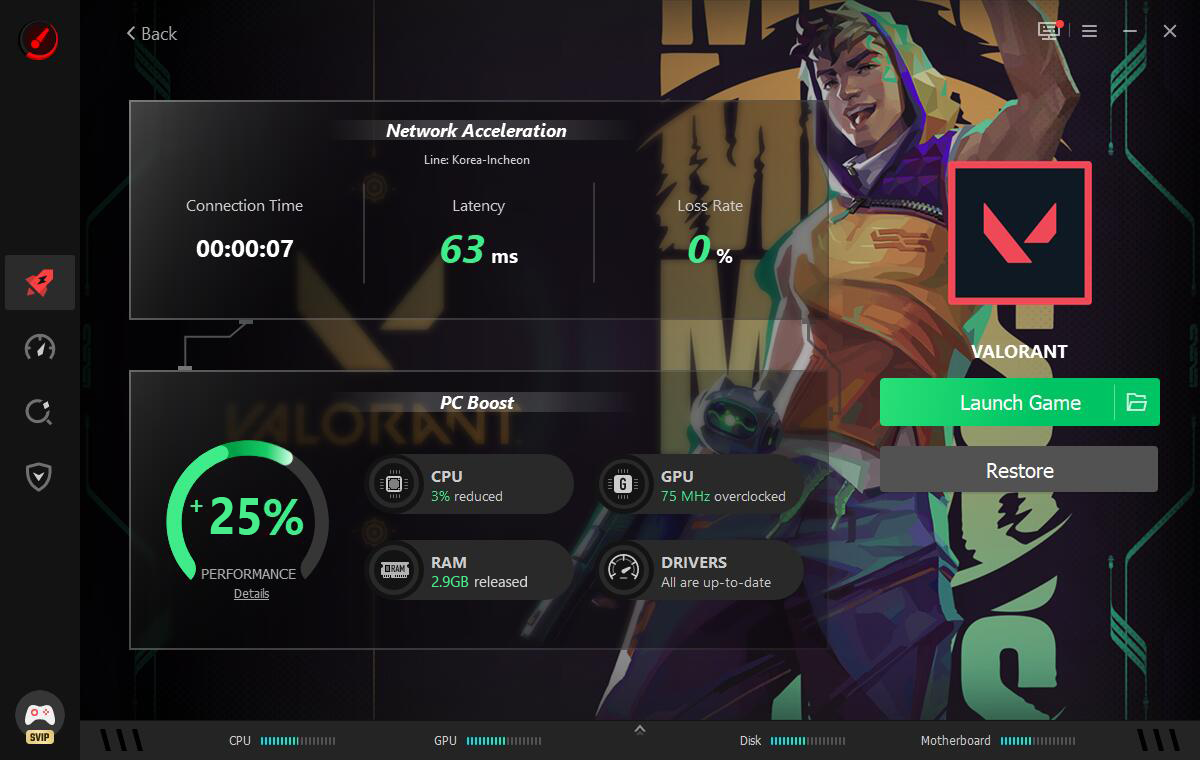
After I downloaded and installed Smart Game Booster on my Windows 11 PC, I launched the app and landed on a clean, gamer-styled dashboard instead of a cluttered settings menu.
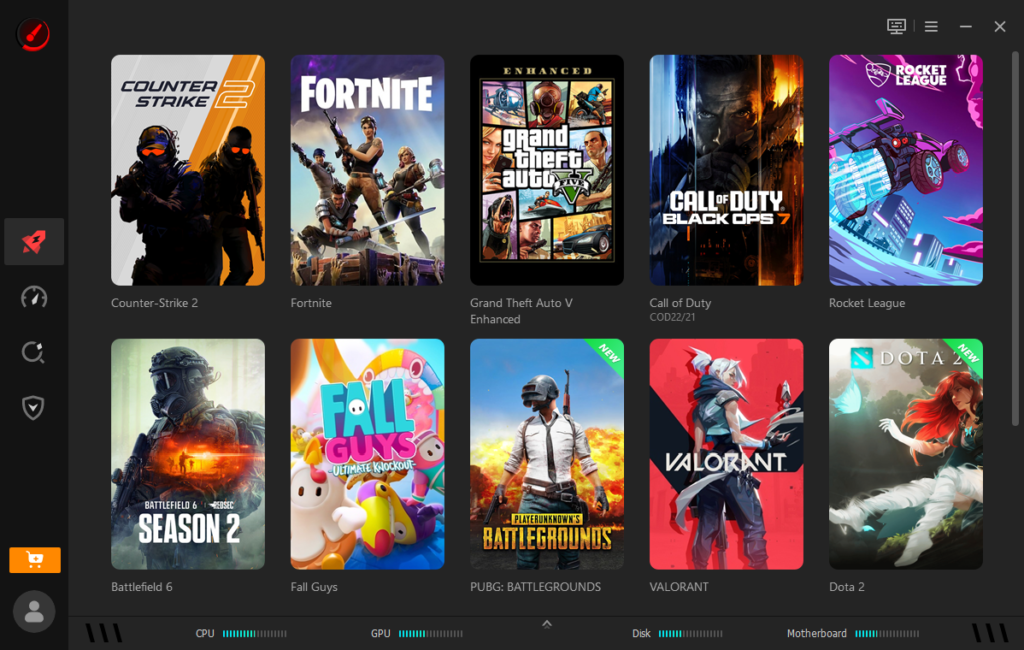
- Step 2: Choose a game to boost.
The app scanned my installed games automatically and let me pick Valorant directly from a list, which then let me boost both PC performance and internet connection for that specific title at the same time.
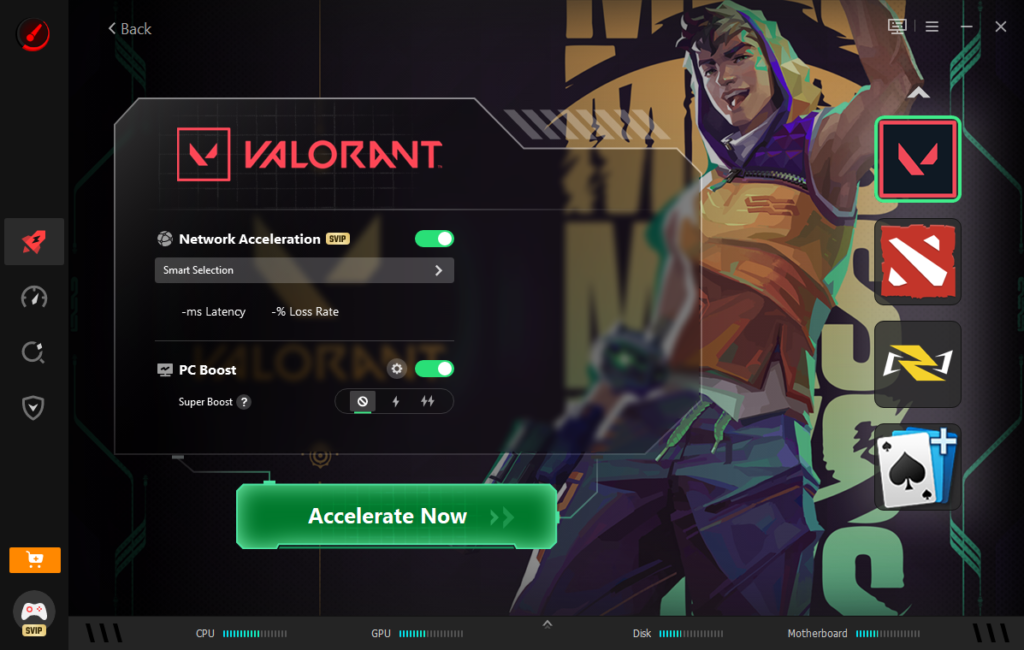
- Step 3: Enjoy high FPS and low ping gaming.
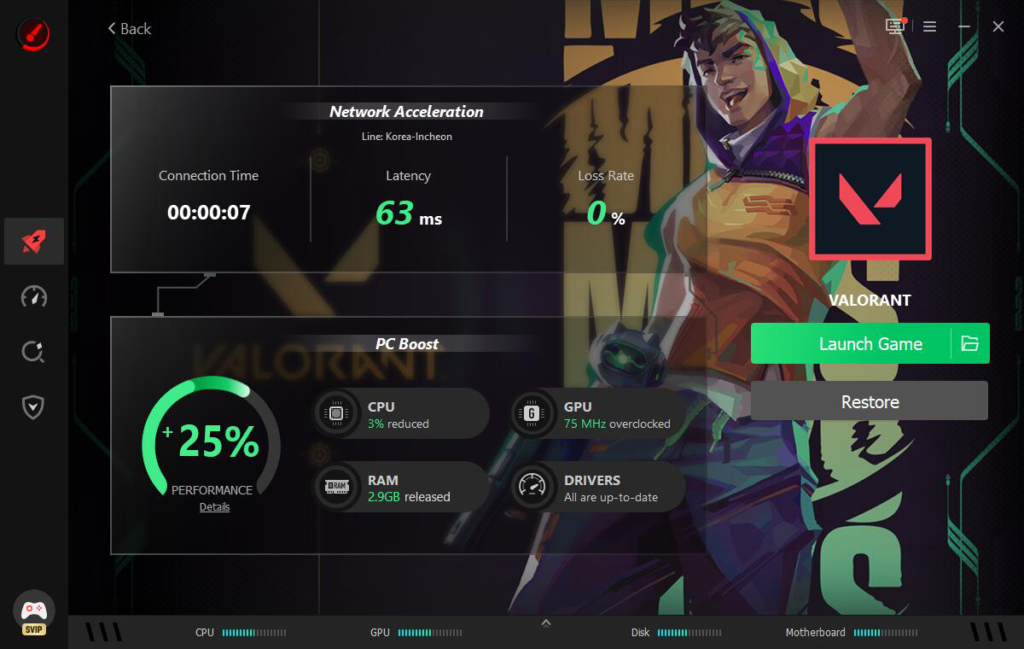
Players can see a 15%–35% FPS gain by releasing background RAM/CPU resources, alongside a 20–40ms ping reduction through optimized route server connection.
What I Actually Noticed in Gameplay
The Network Acceleration feature was the main reason I kept using it. It connects through more than 500 game servers worldwide, and I genuinely saw more stable ping during matches, particularly when playing with friends overseas.
It also managed to route around some connection throttling my ISP seems to apply during peak hours, which was the exact problem that sent me looking for this kind of tool in the first place.
Auto Boost deserves credit too. It detects when a game launches and automatically switches into gaming mode without me having to remember to toggle anything manually. Combined with Super Boost, which overclocks GPU and VRAM, I noticed smoother frame pacing in a couple of GPU-intensive titles, though the improvement was more “steadier” than “dramatically faster.”
The Can I Run It database genuinely surprised me. With coverage for over 160,000 games, 3,000+ GPUs, and 9,000+ CPUs, I used it to quickly check whether my rig could handle a couple of newer releases before buying them, which saved me from an impulse purchase I would’ve regretted.
What I Liked
After putting it through regular use across different games, here’s what stood out:
- Real network acceleration that noticeably stabilized ping during peak hours, not just a claim on a marketing page
- One-click optimization that handles both hardware and network together, so I didn’t need two separate tools running side by side
- Auto Boost removed the manual habit of closing Discord overlays and background apps before every session
- Real-Time Monitor flagged temperature spikes during a couple of longer sessions, which felt like a genuinely useful safety net
- The Can I Run It database saved me from buying a game my rig couldn’t actually handle
Where I Have Reservations
I don’t want this to read like an ad, so here’s where it fell short for me:
- The marketed numbers- that 120% FPS boost and 80% lower ping- felt like best-case scenarios rather than typical results. My actual FPS gains were more modest, usually in the 10-20% range depending on the game
- Like most tools in this category, some of the deeper features sit behind a paid tier, which is fair for a business model but worth knowing upfront
Final Verdict
Game Booster is a legitimately useful tool if your biggest frustration is inconsistent ping or background apps eating your resources mid-match. The network acceleration alone made it worth keeping installed for me, while the built-in FPS Booster helped stabilize frame rates during heavy gameplay. The game compatibility checker is also a genuinely handy bonus feature I didn’t expect to use as much as I did.
The results can vary depending on your PC hardware, network connection, game, and overall system setup, so the advertised performance numbers should be treated as general benchmarks rather than guaranteed results. Still, as an all-in-one utility that combines network acceleration, performance tuning, compatibility checking, and basic security monitoring, it can be a useful addition for gamers dealing with ping issues, stutters, or inconsistent performance.
About the Author